
User Tools
ssh_x11
This is an old revision of the document!
X11 Forwarding over SSH
Use X11 Forwarding on Windows only when you can't get X2Go to work.
Download SSH Client
- Download and install Bitvise SSH client from https://www.bitvise.com/ssh-client-download
Use the SSH to connect to the Course VM and Export X11 Display
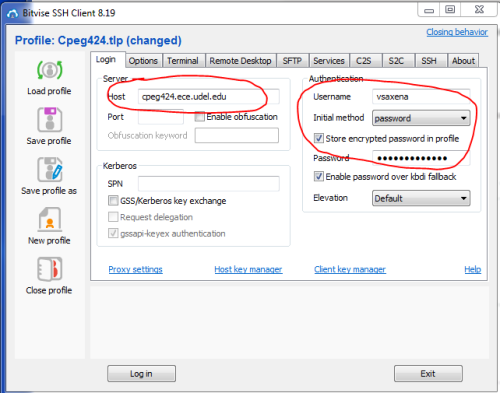
- From your SSH client, connect to cpeg424.ece.udel.edu using the default port (22).
- Enter your EECIS username and password when prompted as in the screenshot below.
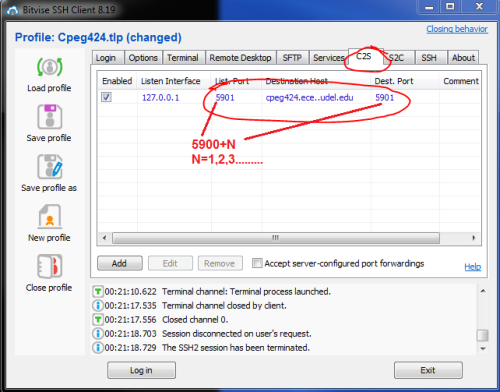
- You can select whether you want to open the sftp window each time you login. Stfp is useful for file transfer
- To run Cadence, you will need to export graphics display from linux. You can alternatively use X2Go instead of using SSH at all. In the SSH client's Terminal tab, enable X11 forwarding. Use the default display setting: 127.0.0.1:0.0.
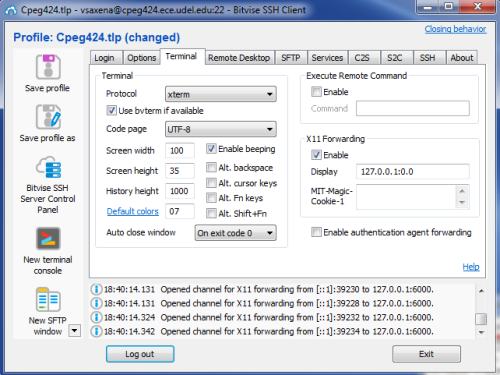
- Then click on “Login” at the bottom of the screen.
- A SSH session will then open up to the course server something like in the figure below:

- Use xhost command to allow any hosts to connect to the display. This is important!


xhost +
- You can start Cadence by using the virtuoso command in the background (append with &)
virtuoso &

- You should see a graphical window of Cadence command interpreter window (CIW) show up as below. If it doesn't then you probably forgot to use xhost +

- You can save this bitvise profile for future use and load it the next time you need to login.
ssh_x11.1598857013.txt.gz · Last modified: 2020/08/31 06:56 by vsaxena
Except where otherwise noted, content on this wiki is licensed under the following license: GNU Free Documentation License 1.3


